
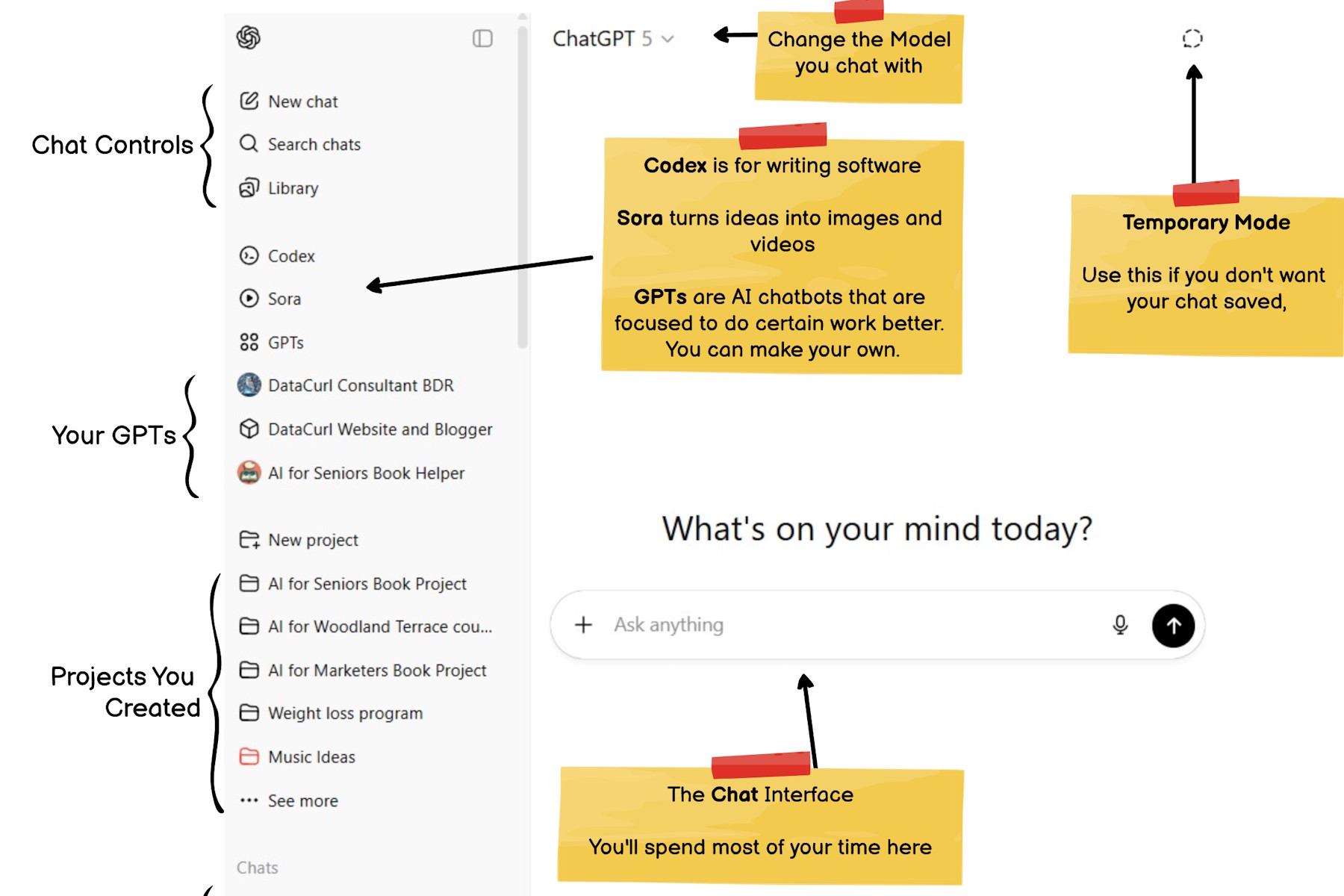
ChatGPT may look a little different from time to time. The company updates the layout, moves buttons, and adds new features. So your screen may not match the pictures in this guide exactly. That is all right. The main parts are still in the same general places, and they work in the same way.
In this article, we will walk through the ChatGPT screen, piece by piece. You will see what lives in the side panel, how to switch models, what “Temporary Mode” means, and where to find your past conversations, projects, and custom GPTs. Then we will move to the main chat window and explain each control, from the Ask Anything box to the plus button, microphone, and voice mode. Think of this as a friendly tour so you can feel comfortable exploring on your own, whether you are on a computer or using the mobile app.
The ChatGPT Interface
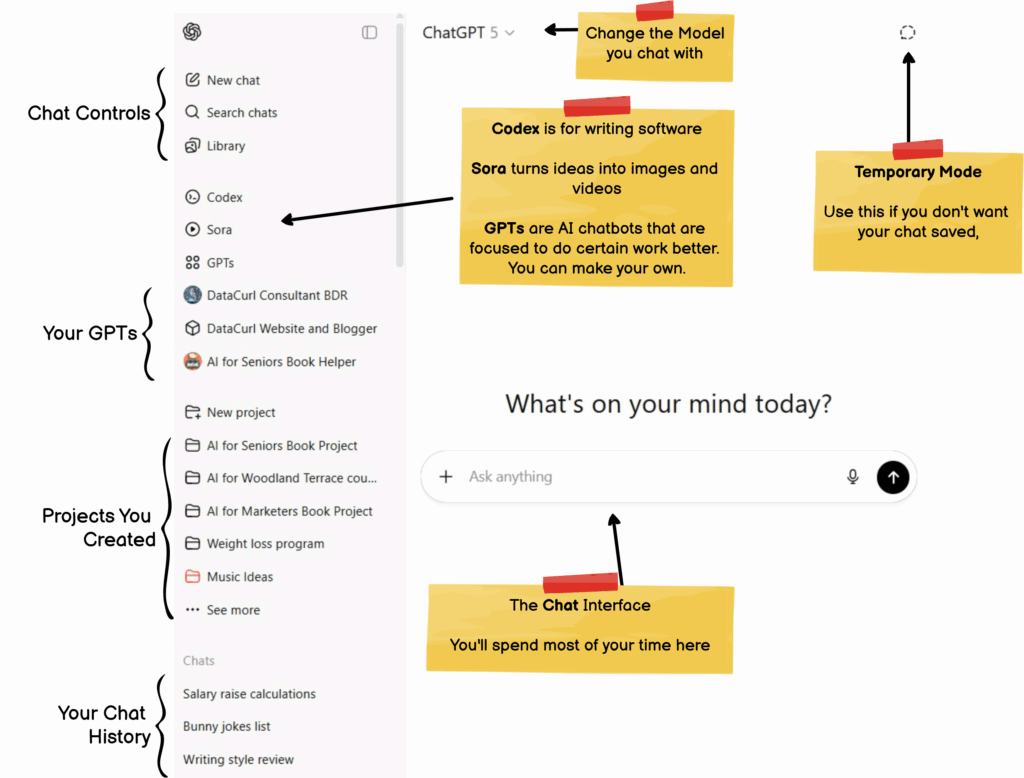
Chat Controls
On the left-hand panel, you’ll see options to start a new chat, search across your previous chats, and access your saved Library. These controls help you organize your work and quickly return to important conversations.
Your GPTs
This section lists specialized AI assistants. For example, Codex is built for writing and understanding software code, while Sora transforms text into images and videos. The GPTs section allows you to use or create custom chatbots trained for specific tasks. These focused tools often work better for specialized work than the general model.
Projects You Created
Beneath your GPTs, you’ll find your personal projects. These may include things like “AI for Seniors Book Project” or “Weight Loss Program.” Each project acts as a workspace where you can group related conversations and files, so everything connected to a single idea stays organized.
Your Chat History
Further down, you’ll see a list of your most recent chats. This is your ongoing record of conversations—helpful when you want to revisit earlier discussions, pull details you previously explored, or continue working where you left off.
Change the Model
At the top of the interface is the model selector. This lets you choose which version of ChatGPT you want to use (for example, ChatGPT-4, GPT-4o, or GPT-5). Each model may have slightly different strengths, so this option allows you to adjust depending on your task.
Temporary Mode
Temporary mode is like a chalkboard that gets erased. When you turn it on, ChatGPT does not save your chats to history. You can ask questions and get answers. Once you close the app, the conversation is gone. This mode is useful if you want privacy.
The Chat Window
Front and center is the main chat window. This is where you’ll spend most of your time. Simply type a question or prompt into the input box at the bottom or use the microphone icon to speak instead. Press the Send button to get your response. Over time, the conversation will build here in a familiar thread format.
The Chat Interface Explained
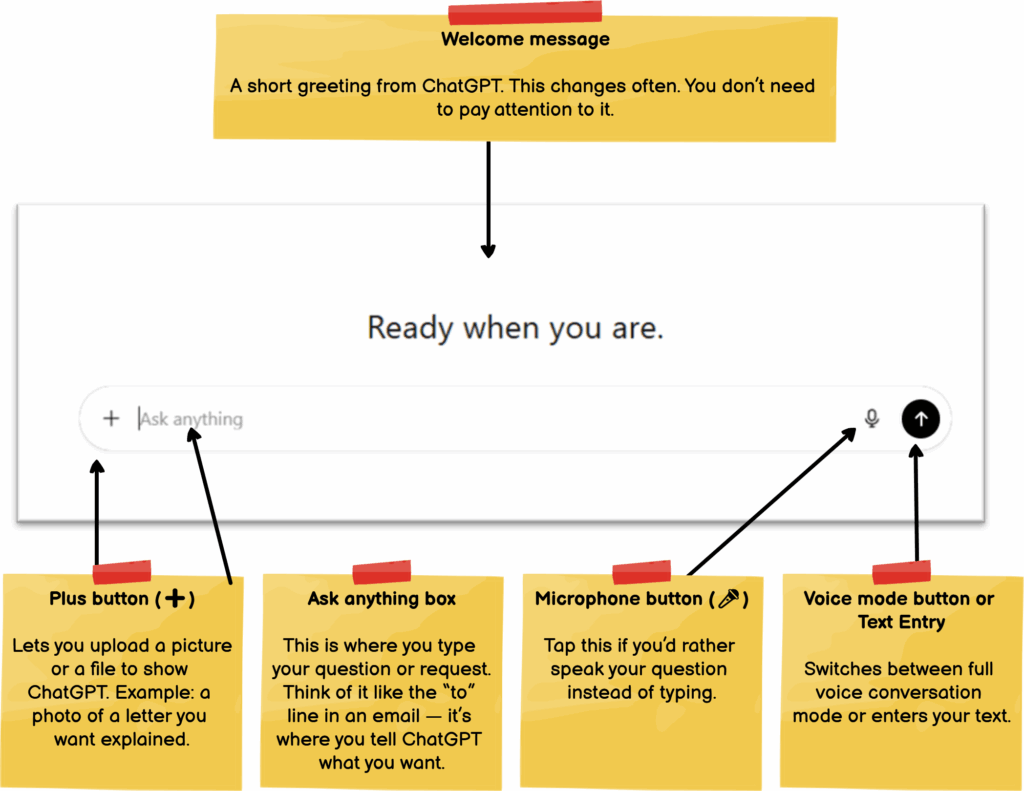
Welcome message
What it is: A short greeting that changes often.
Why it matters: You don’t need to worry about it. The real action happens in the box below.
Ask anything box
What it is: The main space where you type your question.
Why use it: This is how you “talk” to ChatGPT. Type things like “Write a thank-you note for my neighbor” or “Explain this Medicare letter.” You don’t need perfect grammar. AI figures out what you mean. You can also add pictures here.
Plus button (+)
What it is: A tool for adding pictures or files.
Why use it: Instead of typing everything, you can show ChatGPT exactly what you’re working with.
Types of files you can upload:
- Documents: Upload a Medicare letter and ask, “Explain this in plain English.”
- Pictures: Take a photo of a recipe card and ask ChatGPT to make a shopping list.
- Screenshots: Upload a picture of an error message and ask what it means.
Safety Reminder: Always cover up sensitive numbers (Social Security, Medicare IDs, bank details) before uploading anything.
Microphone button
What it is: Lets you speak your question out loud.
Why use it: Handy if typing feels slow or your fingers get tired.
Voice Mode or Submit Button (waves or arrow)
- If you’re in voice mode, you’ll see the sound waves.
- If you’re typing a question, it turns into a submit button (a small arrow ⬆️ or paper-plane shape).
Voice Mode Button
The button on the right starts Voice Mode. In Voice Mode, you speak directly to ChatGPT and it speaks back to you.
Submit Button
When you type text in the Ask Anything box, that same button changes to a Submit Button. After typing your message, press this button to send it to ChatGPT.
How to Use Voice Mode
Want to have a spoken conversation? Just press the Voice Mode button. We cover this more in a later chapter.
Troubleshooting Voice Mode
If you don’t see the Voice Mode button:
- Clear any text from the Ask Anything box
- Look for the button again
If it’s still not there, Voice Mode isn’t available on your device. This usually means ChatGPT needs permission to use your microphone.
- (iPhone) Go to Settings -> Privacy & Security -> Microphone.
- (Android) Go to Settings -> Apps -> ChatGPT -> Permissions. Ensure the microphone is enabled.
Still not sure how to fix it? Ask ChatGPT directly: “Why can’t I use Voice Mode on this device?” It will walk you through the steps.
Anatomy of a Chat
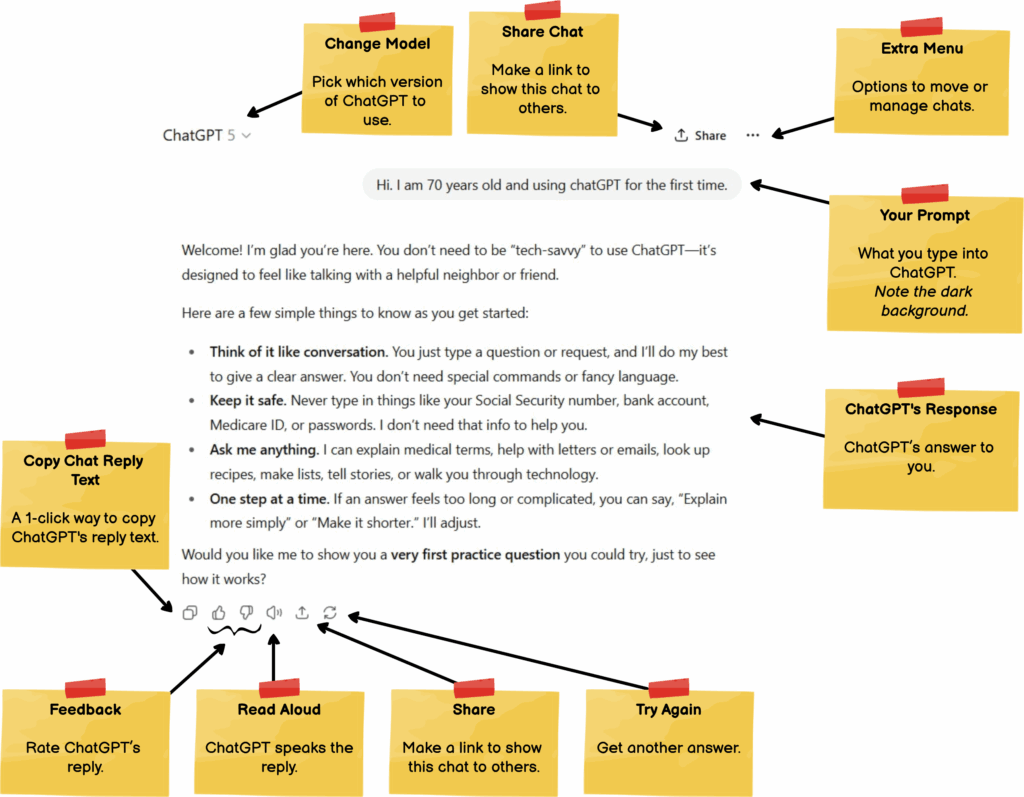
Change Model
A “model” is like a helper, so this menu lets you pick which “helper” you want to talk to. Each model is slightly different, but they all answer your question. Until you get way more advanced, leave this on the default setting.
Share Chat
When you press Share, ChatGPT makes a special link you can send to a friend or family member. They’ll only see this one conversation, not your whole account.
Extra Menu
This menu gives you tools to tidy up. You can move chats into folders, archive them, or even delete ones you don’t need anymore. It’s like cleaning up a desk drawer.
Your Prompt
This is where your words go. Whatever you type here is your question or request. The dark background helps you see that these are your words, not ChatGPT’s reply.
ChatGPT’s Response
This is the AI’s side of the conversation. You ask, and ChatGPT answers here in plain text.
Copy Chat Reply Text
Press this button to copy ChatGPT’s answer. You can then paste it into an email, note, or document. Just like cutting and pasting a recipe from a magazine.
Feedback
Tell ChatGPT the quality of the answer. Thumbs up means “good job,” thumbs down means “not helpful.” It’s optional, you don’t have to use it.
Read Aloud
Press this to have ChatGPT read its answer to you. Make sure your speakers or headphones are on. It’s handy if your eyes get tired of reading.
Closing
Once you know what each part of the screen does, ChatGPT feels less like a mystery and more like a helpful tool you can steer. You do not have to remember every term or menu. The important thing is knowing where to look when you want to start a new chat, upload a picture, switch to voice, or return to an earlier conversation.
If something on your screen looks slightly different from the pictures, do not worry. Look for similar icons, labels, or buttons in the same general area. Use this guide as a map, not a strict checklist. And if you get stuck, you can always ask ChatGPT itself to help: “Explain what I am seeing on my screen” or “Show me how to turn on voice mode.” With a bit of practice, the interface will start to feel familiar, and you can focus on the questions you want to ask instead of the buttons you need to press.
Want more?
See our complete list of articles on the ChatGPT interface and Features.