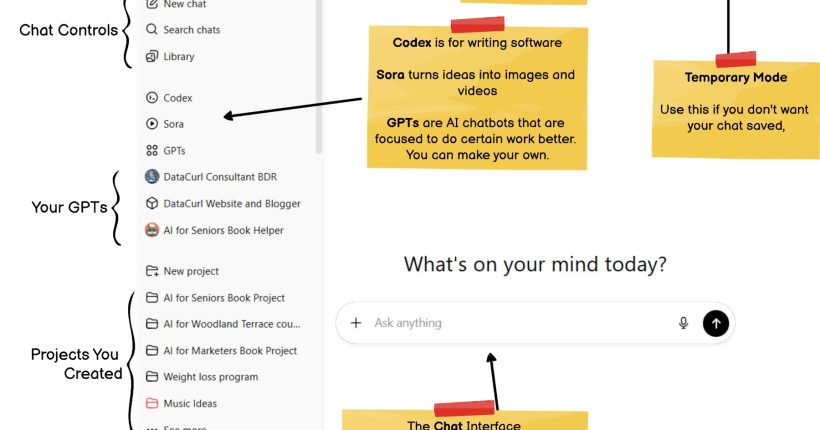

Projects in ChatGPT are like folders that hold all the pieces of one topic in one place. Inside a project, you can keep related chats, add files, and give special instructions so ChatGPT knows how to help you for that topic. For example, you might have a “My Journal” project, a “Family History” project, or a “Health Questions” project. Each project becomes its own workspace that you can return to again and again.
Here is how they work in simple terms:
- A project keeps your chats, files, and project instructions together so ChatGPT can stay on topic for that one area.
- Project instructions only apply inside that project. If you start a normal chat outside the project, those instructions do not carry over.
- You need to open the project first, then start a new chat inside it, so ChatGPT can use the files and instructions you stored there.
- Projects help you stay organized, but they are not magic memory. Very long or very old chats may still be hard for AI to recall, so it can help to restate key details from time to time.
- Normal safety rules still apply. Do not upload documents with full Social Security numbers, bank account numbers, or other sensitive details.
In the steps below, you will learn how to create a new project, add instructions so ChatGPT knows how to behave inside that project, and attach files so it can read and refer to them while it helps you.
How to Create a New Project in ChatGPT
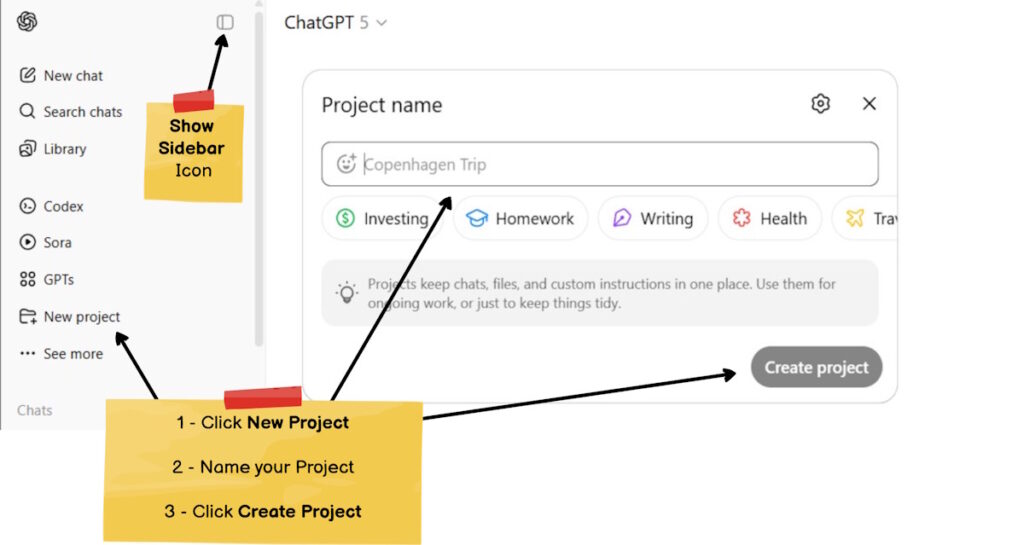
Refer to the image above as needed.
- Open ChatGPT on your phone or computer.
- Look at the left-hand menu (where your past chats are listed).
- If you don’t see a left-hand menu, click the Show Sidebar icon.
- Tap or click on “Projects”.
- Choose “New Project” (it may have a “+” sign).
- Give your project a name (Use “My Journal” for now.)
- Start typing or pasting what you want ChatGPT to help with. Everything you add will stay in this project. Remember to go to this project, when starting a new chat.
How to Add Project Instructions
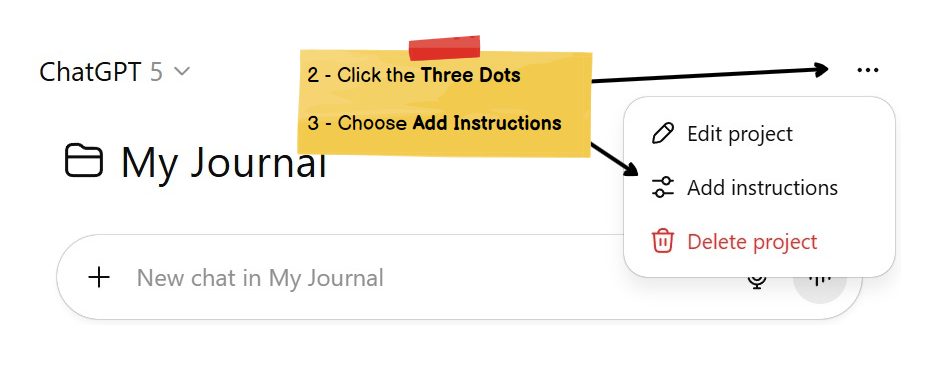
Review the image above, then:
- Click on your “My Journal” project on the left.
- Click on the Three Dots menu on the top right.
- Choose “Add Instructions”.
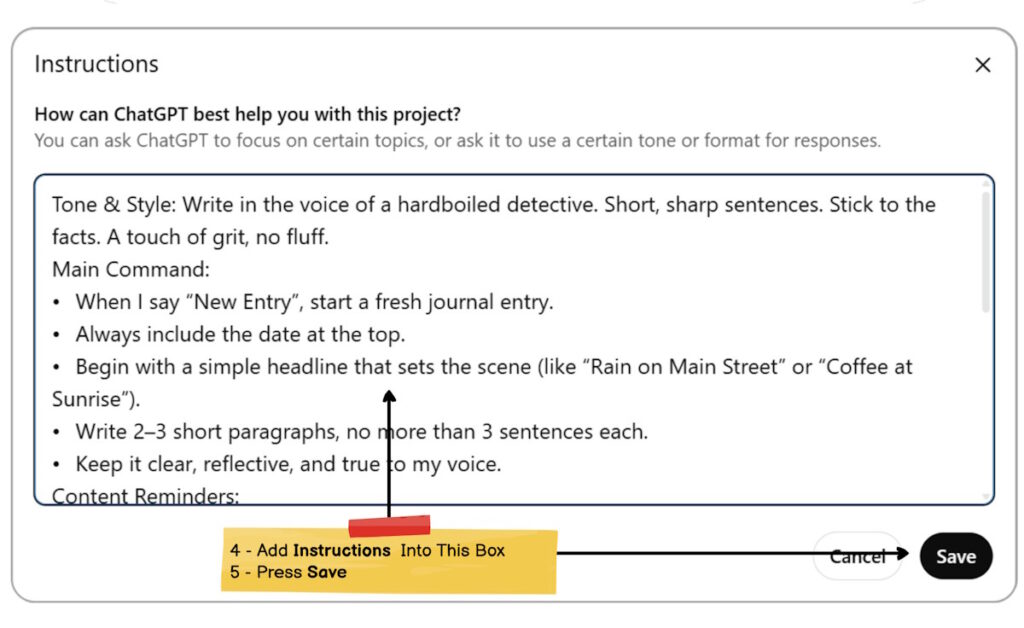
- Paste or type your instructions into the box.
- Then press Save.
How To Add Project Files
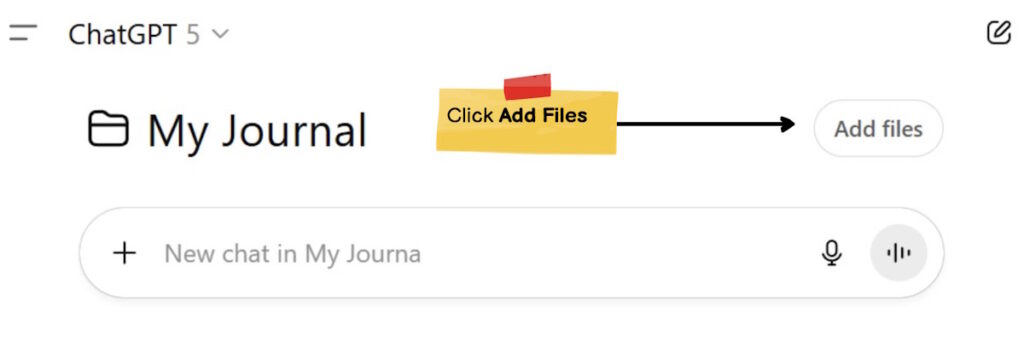
Review the image above, then:
- Click on your “My Journal” project on the left.
- Click on the Add Files button in the middle left.
- A Project Files box pops up. Drag files into the box or click the Add Files button.
Closing
Once you set up your first project, you may find it much easier to “keep everything in one place” with ChatGPT. Instead of hunting through a long list of random chats, you can click on “My Journal,” “Book Ideas,” or “Trip Planning” and see all the related conversations and files together. Any time you want to continue that work, just return to the same project and start a new chat inside it.
As you get comfortable, you can create more projects for different parts of your life. You might have one for medical questions, one for home repairs, and another for letters and writing. Just remember the key habits: open the project first, keep sensitive details out of uploads, and update your project instructions when your needs change. Used this way, projects turn ChatGPT from a single chat window into a set of organized workspaces that support your long-running goals.
Want more?
See our complete list of articles on the ChatGPT interface and Features.